



 Ask Sencha AI
Turbocharge Your Business Process Form Input Fields With Ext JS
June 22, 2021
3546 Views
Get a summary of this article:
Forms are a vital part of any digital product that we see today. They are a great way to interact with the users and record their input. They also play a significant role in capturing valuable user feedback as well. Due to its benefits and use cases, many application developers look for quick and easy ways to create business process forms and focus more of their energy on implementing business logic over the design.
In this blog post, we’ll look at how we can make use of Sencha Ext JS and quickly create impressive process forms for our own use cases in arguably the best javascript framework.
Which types of fields are available for creating forms with Sencha Ext JS?
Sencha Ext JS has an entire namespace Ext.form.field dedicated to providing form controls. It has a standard set of field types that you can use to create an end-to-end form panel. These field types include Checkbox, ComboBox, Date, Display, File, Hidden, HtmlEditor, Number, Radio, Text, TextArea, and Time.
For detailed information about these fields, check out their individual documentation.
How can I do validations based on field types?
Client-side validations are equally important as server-side schema and data validations. They help in the identification of incorrect or insufficient information before making API calls to the server. Hence, resulting in lesser network traffic due to correct API calls. Sencha Ext JS supports two types of validations namely built-in and custom validations.
Ext JS has its own set of apparent validation rules for some field types. For instance, in a Date field, if incorrect data is entered which can not be actually converted into the Date instance, Ext JS internally detects it and provides meaningful hints and error messages for the user to rectify their data.
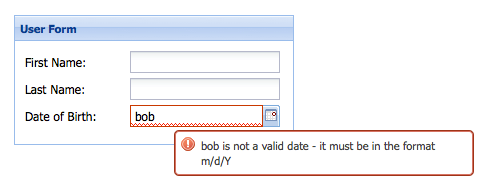
With Ext JS, it is fairly easy to change the location of the error message. The following code snippet will move the error message from the default tooltip to a piece of text under the field itself.
{xtype: 'datefield',fieldLabel: 'Date of Birth',name: 'birthDate',msgTarget: 'under', // location of the error messageinvalidText: '"{0}" bad. "{1}" good.' // custom error message text}
The resulting error message will look like follows.
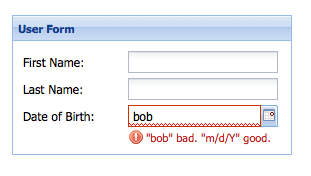
While built-in validations are smooth, straightforward, and time-saving, they can be used every time with every field type. Some validation requirements cannot be met using these built-in validation rules.
The simplest way to implement a custom validation is to use the Text Field’s regex configuration to apply validation rules and the maskRe configuration to limit which characters can be typed into the field.
Following is an example of a Text Field that validates a time.
{
    xtype: 'textfield',
    fieldLabel: 'Last Login Time',
    name: 'loginTime',
    regex: '/^([1-9]|1[0-9]):([0-5][0-9])(sm)$/i',
    maskRe: '/[ds:amp]/i',
    invalidText: 'Not a valid time.  Must be in the format "12:34 PM".'
}
The best part about Ext JS is that it allows you to create reusable validation classes that you can use in your application multiple times without duplicating the code.
Following is an example of a validation class that does exactly the same thing i.e. it validates time, but with reusable configurations.
// custom Vtype for vtype:'time' var timeTest = '/^([1-9]|1[0-9]):([0-5][0-9])(sm)$/i'; Ext.apply(Ext.form.field.VTypes, { // vtype validation function time: function(val, field) { return timeTest.test(val); }, // vtype Text property: The error text to display when the validation function returns false timeText: 'Not a valid time. Must be in the format "12:34 PM".', // vtype Mask property: The keystroke filter mask timeMask: '/[ds:amp]/i'});
What is an easy way to implement a form submit functionality?
Submitting a form is extremely simple and straightforward with Sencha Ext JS. Ext JS allows you to configure the server URL in the form class and define the submit button along with its callback handler.
After setting up the URL and submission handler, your form should look somewhat like this.
Ext.create('Ext.form.Panel', {... url: 'add_user', items: [ ... ], buttons: [ { text: 'Submit', handler: function() { var form = this.up('form'); // get the form panel if (form.isValid()) { // make sure the form contains valid data before submitting form.submit({ success: function(form, action) { Ext.Msg.alert('Success', action.result.msg); }, failure: function(form, action) { Ext.Msg.alert('Failed', action.result.msg); } }); } else { // display error alert if the data is invalid Ext.Msg.alert('Invalid Data', 'Please correct form errors.') } } } ] });
That’s all there is to it. For more information about forms, check out our detailed guide.
Ready to get started with Sencha Ext JS? Head over to Sencha Ext JS and create your own business process forms now.


Latest Content

How to Handle Millions of Rows in a React Data Grid: Buffered Rendering and Server-Side Data
A React data grid that feels instant with 1,000 rows can freeze with 100,000 and…
October 16, 2026

How to Choose a React Grid Component: 12 Features Enterprise Apps Need
Picking a React grid component looks easy in week one. Every option sorts columns and…
October 16, 2026

Enterprise React Data Grid: The Features Enterprise Teams Need, and What Each Grid Includes
Almost every enterprise React data grid advertises the same features: grouping, pivoting, Excel export, clipboard,…
October 16, 2026