






Upscale Images Via Machine Learning With Javascript Super Resolution API
May 20, 2021
7490 Views
Get a summary of this article:
Images are everywhere. Whether on the internet, our phones, or even in our day-to-day lives, most people amass huge volumes of data in the form of digital images of varying quality. Any library of digital images, personal or public, is likely to contain low-quality or blurry images.
Unfortunately, however, these can problematic to view or, or worse, to analyze. In particularly bad cases, you need to zoom to better see or analyze parts of an image, but even then the image may lack the detail or resolution to do this effectively. For this reason, having an automated and intelligent tool that can upscale and create high-quality, high-resolution images is remarkably useful.
Enter DeepAI’s Super Resolution API. It uses machine learning (ML) and AI techniques to upscale images into higher resolutions without compromising their quality or losing their content. DeepAI’s Super Resolution AI can generate an upscaled version of an image within seconds.
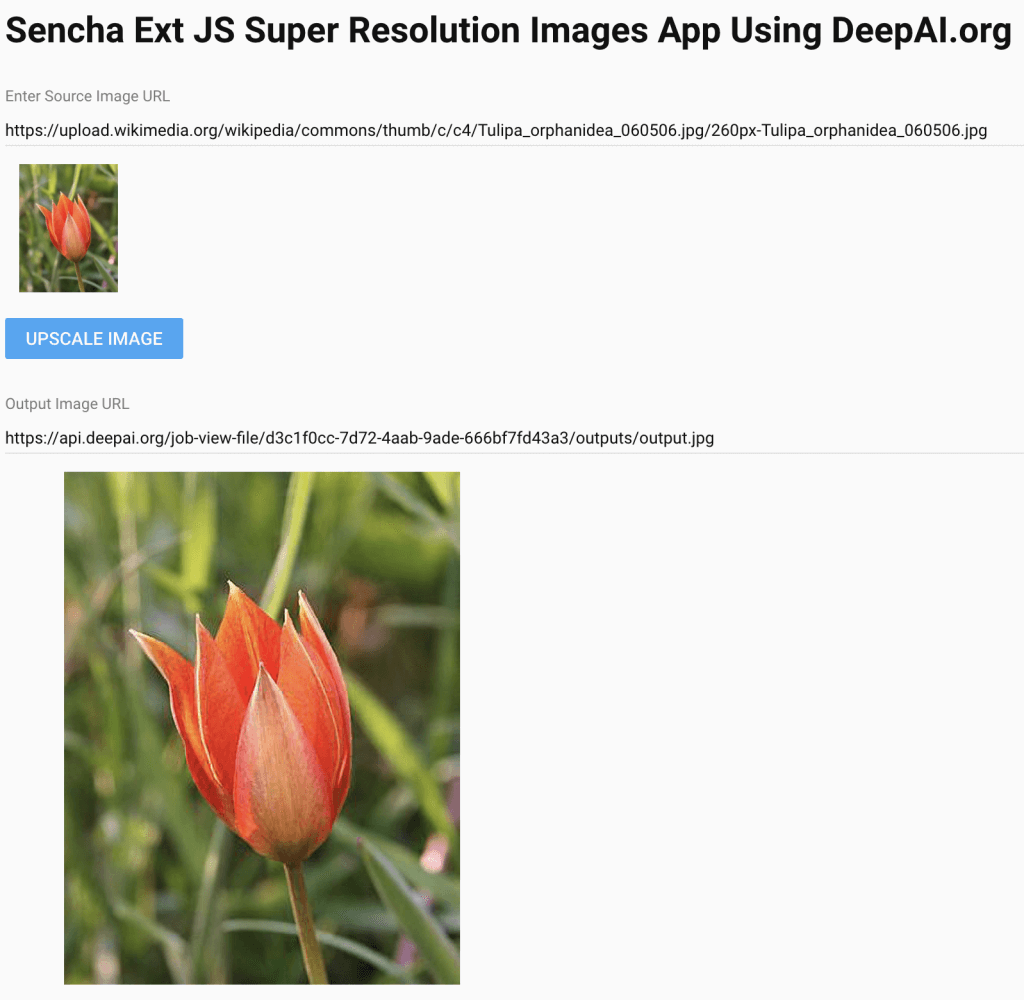
If this sounds useful, let’s take a look at how you can quickly build a Sencha Ext JS app (arguably the best js framework) that upscales any image you input by calling the DeepAI Super Resolution API. Once we are done, your final app will look like this:

What is the DeepAI Super Resolution API?
To understand the DeepAI Super Resolution API, once you have your prerequisites installed type the following at the command prompt:
curl \
-F 'image=https://upload.wikimedia.org/wikipedia/commons/thumb/c/c4/Tulipa_orphanidea_060506.jpg/260px-Tulipa_orphanidea_060506.jpg' \
-H 'api-key:quickstart-QUdJIGlzIGNvbWluZy4uLi4K' \
https://api.deepai.org/api/torch-srgan
This command accepts the URL of an input image and submits an API key to generate a new version of the image with a higher resolution and better quality. If you get it right, the response from the API looks like this:
{
"id": "025c64f7-a610-4ee5-aa33-b215d703c595",
"output_url": "https://api.deepai.org/job-view-file/025c64f7-a610-4ee5-aa33-b215d703c595/outputs/output.jpg"
}
As you can see, it returns a response that is a JSON object with the URL of the upscaled image.
Better yet, not only is the input image enlarged 4 times, it has also has improved in quality.
One thing you need to be aware of though, is that with DeepAI APIs, you only get a quick start API key with a set number of queries. Once your trial expires, you have to get your own API key.
How can I upscaling images using AI in Javascript?
If you think this is useful, here are 4 easy steps that you can follow to build your own application in a matter of minutes.
Step 1: Create an Ext JS Minimal Desktop Application
To develop an app to upscale any image you input, first create a blank minimal desktop application in EXT JS. If you are new to Sencha’s Ext JS framework, you can follow this tutorial to create a minimal desktop application from the command prompt. I have chosen to create all my files in a folder called super-res and I call the app superRes.
Step 2: Include the DeepAI Package
To include the DeepAI package, open the index.html file located in the main directory and add the following line anywhere in the header of the HTML:
<script src="https://cdnjs.deepai.org/deepai.min.js"></script>
Step 3: Create the Main View
In the main view, we have the following:
- A text field for the URL of the input image
- An area to display the input image
- A button labelled ‘Upscale Image’
- A text field to display the URL of the output upscaled image
- An area to display the output image
To get started, open the mainView.js file and replace its contents with the following code. Make sure to replace superRes with the name of your app if you plan to change the name.
Ext.define('superRes.view.main.MainView', {
extend: 'Ext.Container',
xtype: 'mainview',
controller: 'mainviewcontroller',
viewModel: {
type: 'mainviewmodel'
},
items: [
{
xtype: 'component',
html: '<h1>Sencha Ext JS Super Resolution Images App Using DeepAI.org</h1>'
},
{
xtype: 'textfield',
label: 'Enter Source Image URL',
value: 'https://upload.wikimedia.org/wikipedia/commons/thumb/c/c4/Tulipa_orphanidea_060506.jpg/260px-Tulipa_orphanidea_060506.jpg',
reference: 'srcImgUrl'
},
{
xtype: 'image',
title: 'Source Image',
reference: 'srcImg',
width: 100,
height: 100,
},
{
xtype: 'button',
text: 'Upscale Image',
handler: 'onUpscaleImg'
},
{
xtype: 'textfield',
label: 'Output Image URL',
reference: 'outputUrl',
readOnly: 'true'
},
{
xtype: 'image',
label: 'Output Image',
reference: 'outputImg',
width: 400,
height: 400,
}
],
defaults: {
flex: 3,
margin: 10
}
})
Step 4: Add the Controller
Once you are done there, the next step is to add an action to the ‘Upscale Image’ button when click it. The handler for the button click goes into the main controller. Open the MainViewController.js file and replace its contents with the following code:
Ext.define('superRes.view.main.MainViewController', {
extend: 'Ext.app.ViewController',
alias: 'controller.mainviewcontroller',
onUpscaleImg: function (button) {
srcImgUrl = this.lookupReference('srcImgUrl').getValue();
//clear the output url and image
this.lookupReference('outputUrl').setValue(" ");
this.lookupReference('outputImg').setSrc("");
//display the input image
this.lookupReference('srcImg').setSrc(srcImgUrl);
//call the super resolution API
this.callSuperResolutionAPI(srcImgUrl);
},
callSuperResolutionAPI: async function (srcImgUrl) {
try{
//replace with your API key
deepai.setApiKey('quickstart-QUdJIGlzIGNvbWluZy4uLi4K');
//call the super resolution API
var resp = await deepai.callStandardApi("torch-srgan", {
image: srcImgUrl,
});
console.log(`Resposne:${JSON.stringify(resp)}`);
outputUrl = resp.output_url;
this.lookupReference('outputUrl').setValue(outputUrl);
this.lookupReference('outputImg').setSrc(outputUrl);
}
catch(err) {alert(err);}
}
})
Important: Make sure you replace the quick start API key with your own key.
The main job of calling the DeepAI API is done by the callSuperResolutionAPI() function, which we implement as an async function. This function calls the REST API and displays the URL of the output image as well as the upscaled image itself.
Where can I get AI API source code to upscale images in Javascript?
That’s it! It really is that easy. You have built an entire image upscaling app in a matter of minutes. This is all made possible by the Sencha Ext JS framework which accelerates development and allows you to create awesome image processing and computer vision apps.
To try it out, download the entire source code and get started in Ext JS.



Latest Content


Generating Live Ext JS Database Applications with Indi Engine AI: A Practical Architecture for Enterprise Modernization
Modernizing enterprise applications is rarely a matter of replacing an old interface with a new…
September 28, 2026
Building High-Performance Real-Time Operational Dashboards with Ext JS and React
Real-time operational dashboards are no longer simply reporting interfaces. In logistics, fleet management, supply chain…
September 28, 2026
What JS Days 2026 Keynote Revealed About the Next Era of Development
The JavaScript ecosystem has spent the last decade optimizing for speed. Frameworks have become more…
September 23, 2026