



 Ask Sencha AI
Easily Analyze Video Using Machine Learning With Javascript
June 1, 2021
3197 Views
Get a summary of this article:
Processing, classifying and labelling videos remains a huge challenge of undeniable importance. With the accumulation of massive video data online, it is important to have the right tools to analyze this data. Microsoft Azure Media Service Video Indexer offers services for mining insights from videos. It is a cloud application built using machine learning and AI algorithms and includes a wealth of services including face recognition, sentiment analysis, language detection, and scene analysis, just to name a few.
In this blog, I’ll show you how to embed Azure Video Indexer widget in your app using Sencha’s Ext JS (one of the top js frameworks). Ext JS is a comprehensive Javascript framework for developing web and mobile applications for all modern devices. If you are a developer looking to create astounding apps with detailed video analysis, read on.
What is the Azure Media Service Video Indexer?
The Video Indexer allows you to upload a video and extract cognitive insights from the video. Cognitive insights include labelling, celebrity recognition, OCR, topics, scenes etc. Below is a screen shot of the final app with the video indexer widget embedded inside it.
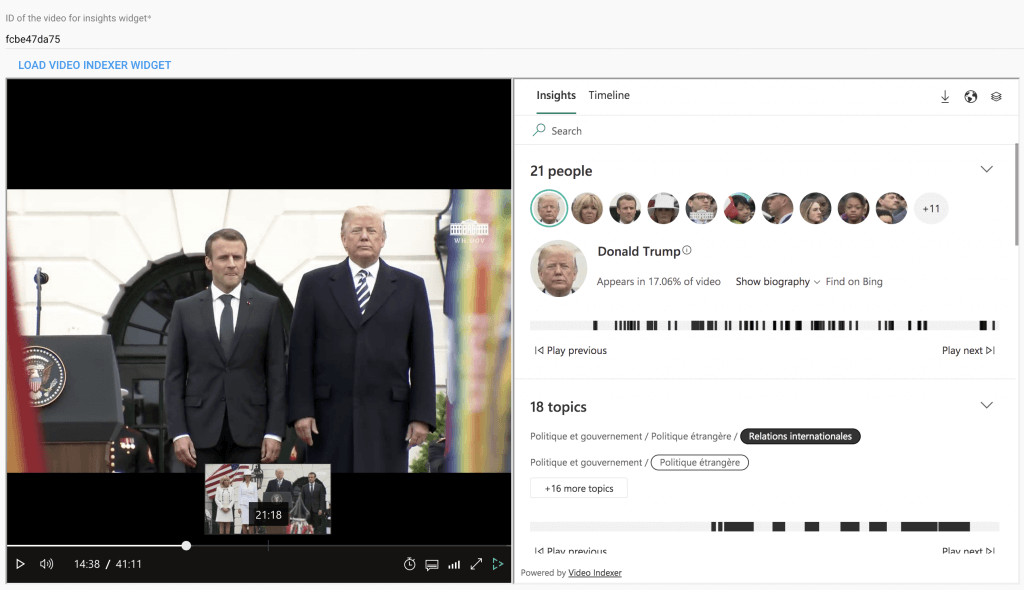
Once a user inputs a video id, the app displays two frames. On the left is the video being played and on the right is the insights widget with all sorts of information including people, topics, keywords, labels, etc. Selecting a certain element from this insight tab, plays the video of that element. The insights widget has two tabs, i.e., insights and timeline. Switching to the timeline tab, looks like this:
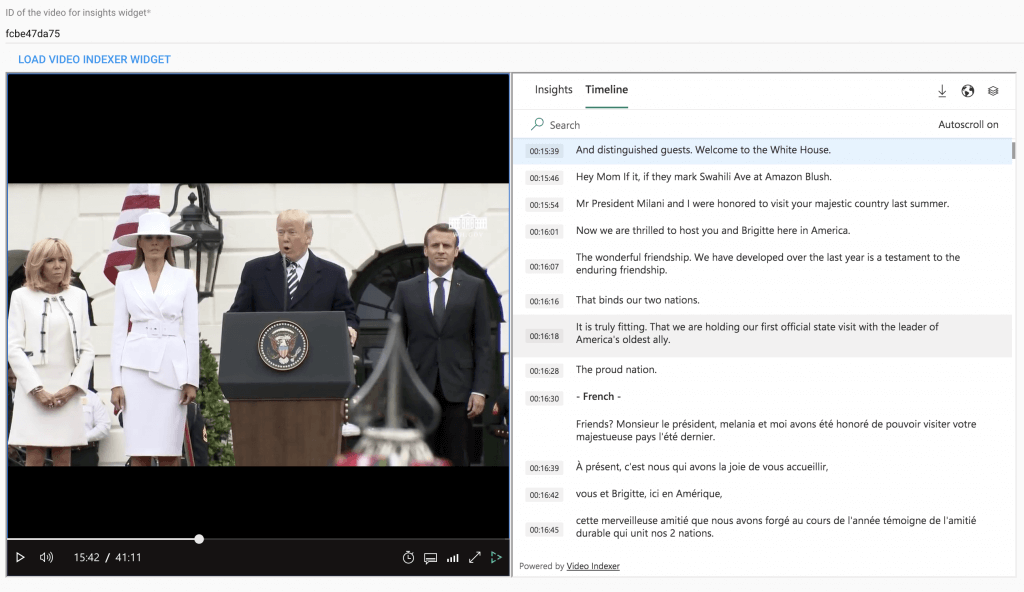
The timeline tab shows a transcription of the video. Selecting any timeline, starts playing the video from that point.
What is the Video Indexer Developer Portal?
I assume that you have signed up for an account at the Video Indexer Developer Portal and subscribed to their APIs. You can upload your own video there and have the portal generate the cognitive insights for that video. To keep things simple, we’ll use one of the sample videos already uploaded at the portal for public viewing. Hence, you can run this Ext JS app without having an account ID.
If you play any of the sample videos on the portal, choosing </>Embed will show you a share URL, e.g.,
https://www.videoindexer.ai/accounts/00000000-0000-0000-0000-000000000000/videos/fcbe47da75/
The last part of the URL fcbe47da75 is the video id that you want to run in the app that we are building.
How can I develop a video indexer app?
Follow the 4 easy steps given below to integrate the Video Indexer widget in your app.
Step 1: Create a project
Create a moderndesktopminimal app as shown in this tutorial. I have generated all the files in a folder called vi-demo. Also, I have named my app ViDemo.
Step 2: Add the Mediator
The video indexer widget has two parts:
- Video player
- Insights frame
The two frames need a mediator, so that actions in the insights frame are synched with the video frame being played. Open the index.html file in the root directory and add the following anywhere in the body of the html:
<script src="https://breakdown.blob.core.windows.net/public/vb.widgets.mediator.js"></script>
Step 3: Setup the Main View
The main view has the following:
- A text field for inputing the video id
- A button, which when clicked loads the video indexer widget
- The video indexer widget
From the app/desktop/src/view/main/ folder open the file MainView.js and add the following code to it:
Ext.define('ViDemo.view.main.MainView', {
extend: 'Ext.Container',
xtype: 'mainview',
controller: 'mainviewcontroller',
viewModel: {
type: 'mainviewmodel'
},
items: [{
xtype: 'fieldset',
items: [
{
xtype: 'textfield',
label: 'ID of the video for insights widget',
value: 'fcbe47da75',
name: 'videoId',
required: true,
reference: 'videoId'
},
{
xtype: 'button',
text: 'Load Video Indexer Widget',
handler: 'onLoadVI',
},
{
xtype: "component",
id: "my-div"
}]
}]
})
Step 4: Add the controller
Edit the MainViewController.js file in the app/desktop/src/view/main/ folder and add the following block of code to it.
Ext.define('ViDemo.view.main.MainViewController', {
extend: 'Ext.app.ViewController',
alias: 'controller.mainviewcontroller',
onLoadVI: function (button) {
var videoId = this.lookupReference('videoId').getValue();
var playerSourceUrl = 'https://www.videoindexer.ai/embed/player/00000000-0000-0000-0000-000000000000/'+videoId;
var insightsSourceUrl = 'https://www.videoindexer.ai/embed/insights/00000000-0000-0000-0000-000000000000/'+videoId;
var domHelper = Ext.DomHelper;
// specification object
var spec = {
id: 'iframe-container',
tag: 'div',
// append the two iframes for player and insights
children: [
{tag: 'iframe', id: 'player-frame', width:'640', height:'640', src:playerSourceUrl },
{tag: 'iframe', id: 'insights-frame', width:'640', height:'640', src:insightsSourceUrl },
]
};
var myDiv = domHelper.overwrite('my-div', spec);
}
})
The function onLoadVI() is called when the user enters a video id and presses the ‘Load Video Indexer Widget’ button. This function constructs a URL for the video and the insights widget, and creates two iframes for the video player and the insights frame. It is all made possible by using Ext.DomHelper.
Where can I get source code for the Azure Media Services Video Indexer?
That’s it! Sencha’s Ext JS makes it extremely easy to integrate the Azure Media Services Video Indexer widget in your Javascript client. Explore more features of the video indexer APIs and customize them for your app. You can download the entire source code and try out this app.


Latest Content
React Component Library for Data-Heavy Apps: Why 1 Vendor Beats 5
Data-heavy React apps rarely start with five UI vendors. They get there one reasonable decision…
October 21, 2026
How to Standardize on One UI Component Library Across Your React Apps
In most large organizations, every React app has its own UI stack. One team uses…
October 21, 2026
UI Component Library vs Component Framework: What Enterprise React Teams Need
Ask a React team what they use for UI, and you’ll usually hear the name…
October 21, 2026