






Rapidly Build A Visually Stunning Login For Your Javascript Dashboards
June 18, 2021
3093 Views
Get a summary of this article:
Presentation and user impressions are essential components of product, UX, and UI design. Knowing this, it stands to reason that the login functionality of an application is the first thing most people see when they go to use a product. As a result, it leaves a lasting impression.
From a functional standpoint, your login screen is a critical and foundational component of your software system. As a result, many application developers look for quick and easy ways to build login screens, focusing most of their energy on implementing business logic rather than design. Using a powerful dashboard JavaScript UI library like Sencha Ext JS, developers can quickly create interactive and visually appealing login screens, forms, and full-featured dashboards with minimal coding effort.
Using Sencha Ext JS, you can quickly generate a LoginApp with Sencha CMD and build modular dashboard UI components, allowing you to create functional and visually appealing login screens for JavaScript dashboards efficiently.
You can, however, have the best of both worlds.
In this blog post, we’ll give you a quick overview of how you can generate an app, create login components, and build can rapidly build both a functional and attractive login system for your JavaScript dashboards using Sencha Ext JS (a powerful javascript web framework). For a more in-depth version of this guide, please take a look at the user documentation.
How can I generate an app using Sencha CMD?
One of the ways you can speed up login screen development with Ext JS and is by using Sencha CMD to generate your application boilerplate. To do this, run the following command in your terminal or CLI to generate the LoginApp boilerplate code.
sencha -sdk /path/to/ExtSDK generate app LoginApp ./LoginApp
Once you have generated the login app, you need to navigate to {appRoot}/app.js and remove the mainView config from the application config. You need to do this because you will need to perform some validations and evaluations before deciding on the initial view the user sees when the application loads.
This is because what you load depends upon context. For example, there is no need to instantiate the Main view if the user is logged out of the system.
Once you have removed the mainView config, your browser will show a blank page when you refresh it. This indicates the app does not know which view to instantiate yet. You show the app what to load by adding a plugins: 'viewport' line to your {appRoot}/app/view/main/Main.js file.
How can I create the login view components?
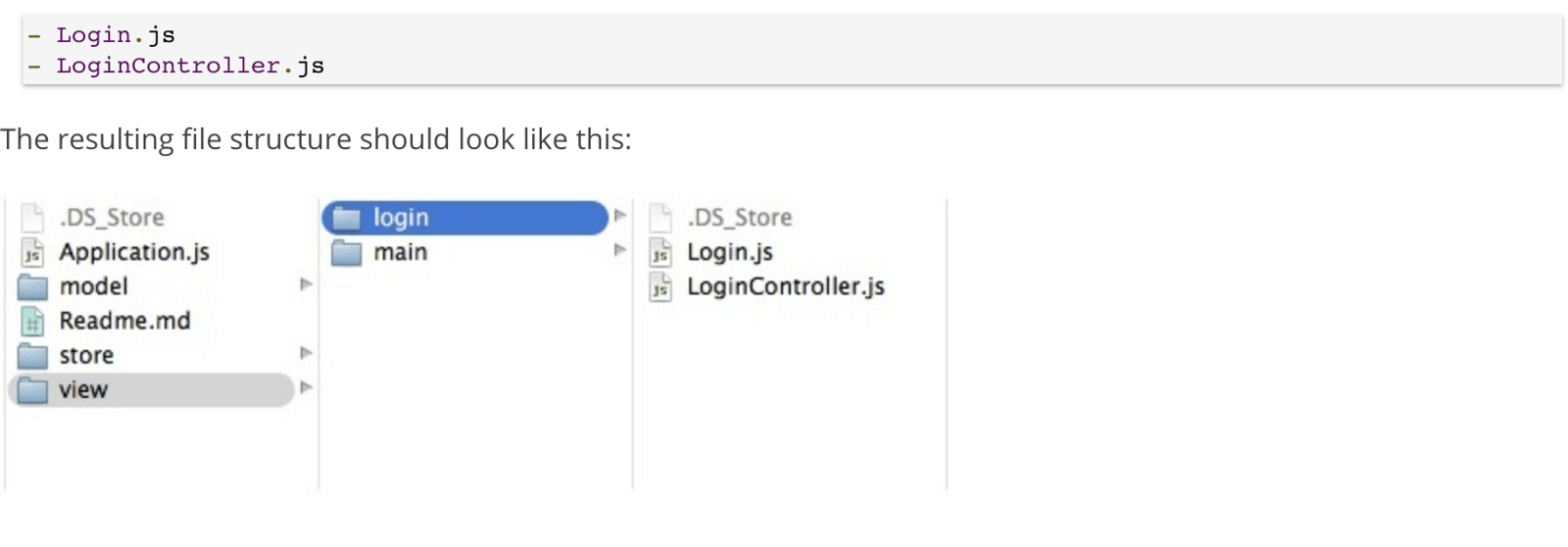
After handling all your configuration and setup prerequisites, to create the login view components navigate to your app/view folder in the LoginApp directory and create a new directory called login. Inside this new directory, create two files: Login.js and LoginController.js.
Your directory structure should now look like this:

How to generate the login window in my application?
Generating the login window is simple. To create the login window, open the {appRoot}/app/view/login/Login.js file and define the Login class as follows.
Ext.define('LoginApp.view.login.Login', { extend: 'Ext.window.Window', xtype: 'login' });
With the code above, you extend the Ext.window.Window class to create our own Login class. We will use it later on in the application.
Now you need to add some basic dependencies and properties that your Login class will rely on.
requires: [
        'LoginApp.view.login.LoginController',
        'Ext.form.Panel'
    ],

    controller: 'login',
    bodyPadding: 10,
    title: 'Login Window',
    closable: false,
    autoShow: true
Now comes the actual UI part. You need to create a form that contains at least three entities in total. These entities are a username text field, a password text field, and the login button itself.
items: {xtype: 'form', reference: 'form', items: [{ xtype: 'textfield', name: 'username', fieldLabel: 'Username', allowBlank: false }, { xtype: 'textfield', name: 'password', inputType: 'password', fieldLabel: 'Password', allowBlank: false }, { xtype: 'displayfield', hideEmptyLabel: false, value: 'Enter any non-blank password' }], buttons: [{ text: 'Login', formBind: true, listeners: { click: 'onLoginClick' } }] }
When you are done, the final code in your Login.js file should look like this:
Ext.define('LoginApp.view.login.Login', {extend: 'Ext.window.Window', xtype: 'login', requires: [ 'LoginApp.view.login.LoginController', 'Ext.form.Panel' ], controller: 'login', bodyPadding: 10, title: 'Login Window', closable: false, autoShow: true, items: { xtype: 'form', reference: 'form', items: [{ xtype: 'textfield', name: 'username', fieldLabel: 'Username', allowBlank: false }, { xtype: 'textfield', name: 'password', inputType: 'password', fieldLabel: 'Password', allowBlank: false }, { xtype: 'displayfield', hideEmptyLabel: false, value: 'Enter any non-blank password' }], buttons: [{ text: 'Login', formBind: true, listeners: { click: 'onLoginClick' } }] } });
What is the right way to make the login logic work?
Now let’s look at implementing the login logic. Note that in the previous section, we assigned an onLoginClick callback function to the button’s click event. Now, you need to define this function in LoginController class.
Ext.define('LoginApp.view.login.LoginController', {
    extend: 'Ext.app.ViewController',
    alias: 'controller.login',

    onLoginClick: function() {

        // This would be the ideal location to verify the user's credentials via
        // a server-side lookup. We'll just move forward for the sake of this example.

        // Set the localStorage value to true
        localStorage.setItem("LoginAppLoggedInStatus", true);

        // Remove Login Window
        this.getView().destroy();

        // Add the main view to the viewport
        Ext.widget('app-main');

    }
});
After successfully creating your custom server logic, it sets a boolean variable called LoginAppLoggedInStatus to true in the browser local storage. This flag variable determines whether a user is logged in or not. Based on this information, you can execute custom behaviors inside your application.
How can I register the launch logic in the Sencha app?
Registering the launch logic inside your JavaScript app is easy. it involves your {appRoot}/app/Application.js and the launch function.
Application.js is the heart of your application. It contains a handy method called launch, which fires when your application has loaded all of its required classes. Here is the full code for this tutorial’s Application.js file.
/**
 * The main application class. An instance of this class is created by `app.js` when it calls
 * Ext.application(). This is the ideal place to handle application launch and initialization
 * details.
 */
Ext.define('LoginApp.Application', {
    extend: 'Ext.app.Application',

    name: 'LoginApp',

    stores: [
        // TODO: add global / shared stores here
    ],
    views: [
        'LoginApp.view.login.Login',
        'LoginApp.view.main.Main'
    ],
    launch: function () {

        // It's important to note that this type of application could use
        // any type of storage, i.e., Cookies, LocalStorage, etc.
        var loggedIn;

        // Check to see the current value of the localStorage key
        loggedIn = localStorage.getItem("LoginAppLoggedInStatus");

        // This ternary operator determines the value of the LoginAppLoggedInStatus key.
        // If LoginAppLoggedInStatus isn't true, we display the login window,
        // otherwise, we display the main view
        Ext.widget(loggedIn ? 'app-main' : 'login');

    }
});
How can I add the logout functionality to my login application?
So far, we have only looked at creating login functionality in our application, but, naturally, logout functionality is equally necessary to every application. Let’s look at how we can add that to your LoginApp.
To add logout functionality go to your MainController class and define an event callback function for the logout feature.
Ext.define('LoginApp.view.main.MainController', {
    extend: 'Ext.app.ViewController',
    alias: 'controller.main',

    onClickButton: function () {

        // Remove the localStorage key/value
        localStorage.removeItem('LoginAppLoggedInStatus');

        // Remove Main View
        this.getView().destroy();

        // Add the Login Window
        Ext.widget('login');

    }
});
That’s all there is to it. Now that we have walked you through the sample, check out the full source code.
Ready to get started with Sencha Ext JS? Head over to Sencha Ext JS and create your own login app now.



Latest Content


Generating Live Ext JS Database Applications with Indi Engine AI: A Practical Architecture for Enterprise Modernization
Modernizing enterprise applications is rarely a matter of replacing an old interface with a new…
September 28, 2026

Building High-Performance Real-Time Operational Dashboards with Ext JS and React
Real-time operational dashboards are no longer simply reporting interfaces. In logistics, fleet management, supply chain…
September 28, 2026

What JS Days 2026 Keynote Revealed About the Next Era of Development
The JavaScript ecosystem has spent the last decade optimizing for speed. Frameworks have become more…
September 23, 2026