



 Ask Sencha AI
Beyond the Grid: Pivot, Tree and Calendar React UI Components with ReExt
Oct 29, 2026
109 Views
Get a summary of this article:
The data grid gets most of the attention in enterprise React apps, and for good reason. But grids answer one kind of question: “show me the records.” Users also ask “how do these numbers break down?”, “how is this organized?” and “what’s happening when?” Those questions need three other React UI components: a pivot grid, a tree, and a calendar.
In many React stacks, each of these comes from a different JavaScript library, if it’s available at all. This guide covers what each component should do, when to use it, and how to build it with ReExt, which brings the Ext JS pivot grid, tree panel and calendar into React. Because they come from the same framework as the Ext JS grid, all four share one theme, one configuration style and one data model.
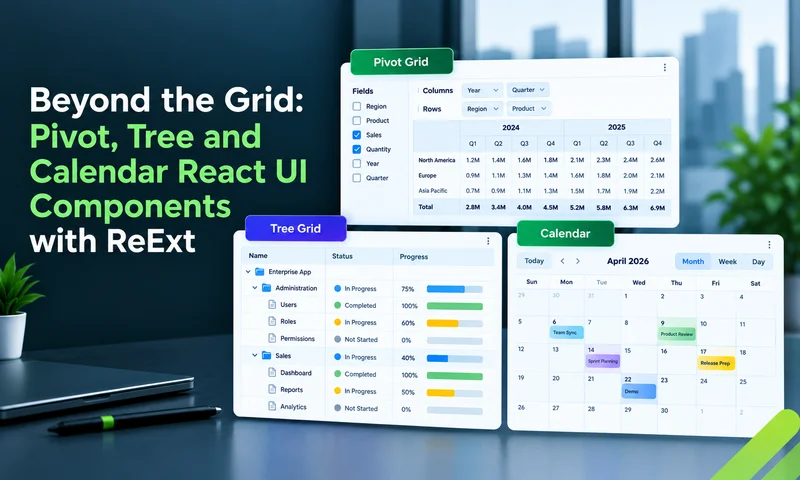
Three components, three questions
| Component | Question it answers | Typical uses | ReExt plan |
|---|---|---|---|
| Pivot grid | “How do these numbers break down?” | Revenue by region and quarter, spend by department and month, headcount by team and level | Enterprise |
| Tree and tree grid | “How is this organized?” | Charts of accounts, org structures, bills of materials, file and folder views, navigation | Pro |
| Calendar | “What’s happening when?” | Shift schedules, delivery windows, maintenance plans, bookings, project milestones | Enterprise |
The examples assume ReExt is installed and your app is wrapped in ReExtProvider, as covered in our Ext JS grid in React tutorial. The pivot grid and calendar each need their package enabled in ReExtData.
The pivot grid: analysis without leaving the app
A pivot grid turns a list of records into a cross-tab summary. Pick fields for the rows (the left axis), fields for the columns (the top axis), and the values to aggregate, and the pivot grid builds the table, with subtotals and grand totals.
When to use a pivot grid
- Users regularly export data to Excel just to build pivot tables.
- Reports compare a measure across two dimensions, such as region by quarter.
- Analysts want to rearrange dimensions themselves, without asking a developer.
A basic pivot grid
    <ReExt
      xtype="pivotgrid"
      style={{ height: 420 }}
      config={{
        title: 'Revenue by region and quarter',
        store: { data: sales },
        matrix: {
          leftAxis: [{ dataIndex: 'region', header: 'Region' }],
          topAxis: [{ dataIndex: 'quarter', header: 'Quarter' }],
          aggregate: [{
            dataIndex: 'revenue',
            header: 'Revenue',
            aggregator: 'sum',
            align: 'right',
            renderer: (value) => Ext.util.Format.number(value, '$0,000'),
          }],
        },
      }}
    />
The sales data is a flat list of records, such as { region: ‘EMEA’, quarter: ‘Q1’, revenue: 412000 }. The pivot grid groups and totals it.
Let users rearrange it
Two plugins turn a fixed report into an analysis tool:
    plugins: [
      { ptype: 'pivotconfigurator' },  // drag fields between rows, columns and values
      { ptype: 'pivotdrilldown' },     // double-click a cell to see the records behind it
    ],
The configurator gives users a panel to drag fields between axes and change aggregations. The drill-down plugin shows the underlying records for any number, which is often the first thing users ask for once they see a total.
Aggregations
| Aggregator | Use it for |
|---|---|
| sum | Revenue, cost, quantities |
| count | Number of orders, tickets or employees |
| avg | Average order value, average handling time |
| min / max | Lowest and highest values, such as price ranges |
You can show several aggregates at once, for example revenue and order count side by side, by adding more entries to aggregate.
Large datasets
By default, the pivot grid aggregates in the browser, which works well for many thousands of records. For larger datasets, Ext JS offers a remote matrix that sends the pivot definition to your server and renders the aggregated result, so the browser never loads the raw data.
The tree and tree grid: data with structure
A lot of business data is hierarchical. Accounts roll up into categories, employees into teams, parts into assemblies. A plain grid flattens that structure; a tree keeps it, and a tree grid adds typed columns, so each level shows its own numbers.
When to use a tree or tree grid
- The data has parent-child relationships users need to see.
- Users navigate a hierarchy to choose what the rest of the screen shows.
- Each level carries values, such as balances or headcount, that users compare.
A tree grid with columns
    <ReExt
      xtype="treepanel"
      style={{ height: 420 }}
      config={{
        title: 'Chart of accounts',
        rootVisible: false,
        store: {
          type: 'tree',
          root: { expanded: true, children: accounts },
        },
        columns: [
          { xtype: 'treecolumn', text: 'Account', dataIndex: 'text', flex: 1 },
          { text: 'Balance', dataIndex: 'balance', width: 160,
            xtype: 'numbercolumn', format: '$0,000', align: 'right' },
        ],
      }}
    />
The treecolumn shows the expandable hierarchy; every other column works like a grid column, with formatting, sorting and renderers. Each node in accounts looks like { text: ‘Cash’, balance: 640000, leaf: true }, and parent nodes carry a children array.
Loading large trees on demand
For big hierarchies, load each branch only when a user expands it. Give the store a proxy; when a node expands, the tree requests its children, sending the node’s ID:
    store: {
      type: 'tree',
      root: { expanded: true, id: 'root' },
      proxy: { type: 'ajax', url: '/api/accounts' },  // called as /api/accounts?node=<id>
    },
Your API returns that node’s children; mark nodes without children with leaf: true so they show no expand arrow.
Checkboxes and drag and drop
Two common extras are configuration too:
- Checkboxes: add checked: false to nodes and handle onCheckchange to react to selections, for example to choose which cost centers appear in a report.
- Drag and drop: add viewConfig: { plugins: { ptype: ‘treeviewdragdrop’ } } to let users reorganize the hierarchy, such as moving a team to a new department.
Driving the screen from a tree
A tree often works as navigation for the rest of the dashboard. Its click events reach React like any other ReExt event:
onItemclick={(view, record) => setSelectedAccount(record.get('id'))}
Also Read: How to Choose a JavaScript Library: 5 Steps (2026 Checklist)
The calendar: when things happen
Scheduling is everywhere in enterprise apps: technician visits, delivery slots, room bookings, maintenance windows, shift rotas. A calendar component shows those events in time and lets users create, move and resize them directly.
When to use a calendar
- Users need to see events across days, weeks or months, not as a list.
- Events belong to several resources or teams that should be shown in different colors.
- Users reschedule by dragging, rather than editing dates in a form.
A calendar with day, week and month views
The Ext JS calendar works with two kinds of data: a list of calendars (such as one per team) and, for each calendar, its events. In ReExt:
    <ReExt
      xtype="calendar"
      style={{ height: 640 }}
      config={{
        title: 'Field service schedule',
        store: {
          type: 'calendar-calendars',
          autoLoad: true,
          proxy: { type: 'ajax', url: '/api/calendars' },
        },
      }}
    />
The calendars endpoint returns each calendar with the address of its events:
    [
      { "id": 1, "title": "North team",
        "eventStore": { "proxy": { "type": "ajax", "url": "/api/events?calendar=1" } } },
      { "id": 2, "title": "South team",
        "eventStore": { "proxy": { "type": "ajax", "url": "/api/events?calendar=2" } } }
    ]
The events endpoint receives the visible date range and returns the events inside it:
    [
      { "id": 101, "calendarId": 1, "title": "Install at Acme Corp",
        "startDate": "2026-11-03T09:00:00", "endDate": "2026-11-03T12:00:00", "allDay": false }
    ]
Because events load by date range, a calendar with years of history stays fast: only the visible week or month is fetched.
What users get out of the box
- Day, week and month views, with a switcher, plus standalone views (calendar-day, calendar-week, calendar-month) if you only need one.
- Multiple calendars, each in its own color, which users can show or hide.
- Drag to move and resize events, and click to create new ones.
- Built-in event forms for adding and editing events.
The calendar also raises events when users add, edit, move or resize an event, which you can handle in React with on props, for example to save changes or validate a booking against your business rules.
Using grid, pivot, tree and calendar together
The real advantage of getting these components from one JS framework shows up when they share a screen. A few patterns that come up again and again:
- Tree drives grid. A tree of regions, departments or accounts on the left; selecting a node filters the grid of records in the center.
- Grid and pivot, two views of one dataset. A tab with the detailed grid and a tab with the pivot summary, both built from the same records.
- Calendar and grid. A calendar of scheduled jobs next to a grid of unscheduled ones, so dispatchers can see open work and available slots at once.
- Pivot drill-down to records. A manager spots an unusual total in the pivot, drills down, and lands on the exact records behind it.
Because all four are Ext JS components, they look the same, use the same configuration style and raise events the same way. In React, each is a <ReExt> element, and their events reach your components as props, so the rest of your app treats them like any other React component.
Which ReExt plan includes each component
ReExt is included in the Ext JS Pro and Enterprise plans:
| Component | Pro | Enterprise |
|---|---|---|
| Data grid | Included | Included |
| Tree panel and tree grid | Included | Included |
| Charts, forms and layouts | Included | Included |
| Pivot grid | No | Included |
| Calendar | No | Included |
| Data exporter (Excel and CSV) | No | Included |
Pro is $125 and Enterprise $158 per user per month, billed annually, and both can be tried free for 30 days.
Frequently asked questions
How do I build a pivot grid in React?
Use a pivot grid component configured with row (left) and column (top) axes and the values to aggregate. In ReExt, set xtype=”pivotgrid” and define a matrix with leftAxis, topAxis and aggregate; add the configurator and drill-down plugins to let users rearrange and explore it. The pivot grid is part of the Enterprise plan.
What is a tree grid in React?
A tree grid combines an expandable hierarchy with typed columns, so each level of the tree shows its own values. In ReExt, a treepanel with a treecolumn and other columns is a tree grid, and it can load branches from the server on demand.
Is there a React calendar component for scheduling?
Yes. ReExt includes the Ext JS calendar, with day, week and month views, multiple color-coded calendars, drag-to-move and resize, and built-in event forms. It’s part of the Enterprise plan.
Do the pivot grid, tree and calendar work with the ReExt data grid?
Yes. They come from the same framework, share one theme and configuration style, and can be combined on the same screen, for example a tree filtering a grid or a grid and pivot showing the same data.
Which ReExt plan do I need?
The data grid and tree are included in the Pro plan. The pivot grid, calendar and data exporter need the Enterprise plan.
More than a grid
Enterprise apps need answers to more than “show me the records.” A pivot grid answers how numbers break down, a tree shows how things are organized, and a calendar shows when things happen. Getting all three from the same framework as your React data grid means one look, one API and one vendor, instead of three more libraries to integrate.
ReExt brings the Ext JS pivot grid, tree panel and calendar into React, alongside the grid and 140+ other components.
Next steps: start a 30-day ReExt trial


Latest Content

Testing Ext JS Applications: What Is Actually Worth Automating
Ask a team with a ten-year-old Ext JS application how much of it is covered…
October 29, 2026

Building a Reusable React UI Component Around the Ext JS Data Grid
The Ext JS data grid can do almost anything an enterprise screen needs: grouping, summaries,…
October 29, 2026

Choosing a React UI Component Library When the Data Grid Matters Most
Most teams choose a React UI component library by looking at buttons, inputs, themes and…
October 29, 2026