



 Ask Sencha AI
Bridge the Gap: Integrating Modern NPM Packages with Ext JS
April 29, 2026
2064 Views
Get a summary of this article:
In the modern web development landscape, the ability to leverage existing solutions is a superpower. While Ext JS provides a robust and comprehensive framework, there are times when a specialized 3rd-party library (like lodash, moment, or axios) is exactly what you need to solve a specific problem efficiently.
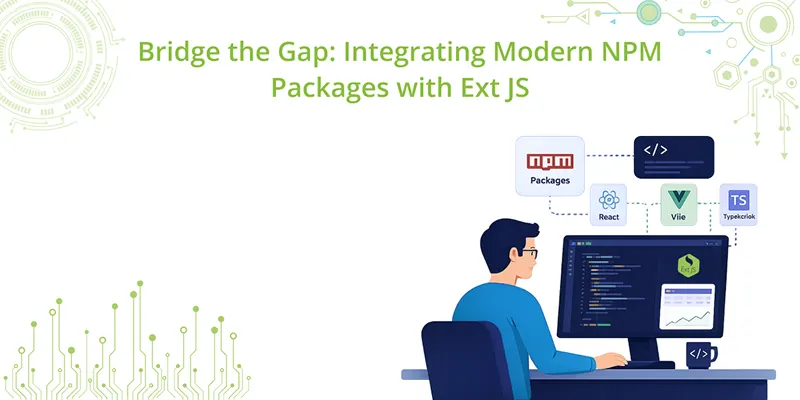
If you are using an NPM-based application (created with @sencha/ext-gen or Open Tooling), integrating these packages is easier than ever. Here is how to do it without the unnecessary theory.
1. Install the Package
Since your project is already NPM-based, you use the standard workflow. Open your terminal in the project root and run:
Bash
npm install <package-name>
For example, if you want to handle complex date manipulations:
Bash
npm install moment
Why do this? Many modern utilities are battle-tested and highly optimized. Instead of reinventing the wheel for things like utility functions or specific UI behaviors, “bridging the gap” allows you to focus on your business logic.
2. Expose the Package (The index.js trick)
In an Ext JS Open Tooling environment, the Webpack build process looks at the index.js file (located at the root or under /app depending on your template). To make a package available within your Ext JS classes, you need to attach it to the App global object.
Open index.js and add your require statement:
JavaScript
    // index.js
    // Existing imports...

    // Prefix with 'x' or similar to avoid naming collisions with Ext JS
    App.xMoment = require('moment');
    App.xLodash = require('lodash');
3. Direct Usage in Components
Once exposed, you can access these libraries anywhere in your application (ViewControllers, Models, or Views) using the App.x[Name] syntax.
Example: Using Moment in a Grid Renderer
JavaScript
    Ext.define('MyApp.view.main.MainController', {
        extend: 'Ext.app.ViewController',
        alias: 'controller.main',

        onDateDisplay: function(value) {
            // Accessing the NPM package directly through the App global
            return App.xMoment(value).format('MMMM Do YYYY, h:mm:ss a');
        }
    });
Best Practices for a Lean Build
- Avoid Over-importing: Only install what you actually need. Every package adds to your final bundle size.
- Tooling Consistency: Ensure you are using the npm run build command to allow Webpack to properly bundle these external dependencies into your final distribution.
- Check Ext JS First: Ext JS is a massive framework. Before adding an NPM package, verify if Ext.util.* or Ext.Date already handles your requirement to keep your application as lightweight as possible.
Reference
- Sencha Documentation: Adding npm Packages
- Getting Started: Open Tooling Guide
Looking to Upgrade to 8.0?
The free-to-use Ext JS Upgrade Adviser tool helps identify code changes required to migrate to the latest Ext JS version. Give it a try!
Join the Sencha Discord Server
Are you looking for community engagement? Want to help, learn and share with many Ext JS experts? Join Sencha Discord Server now for free and be part of our community!
- Sencha MVPs are there
- Sencha developers are there
- Expand awareness of Sencha products
- Community Engagement and Contributions
- And more…
Software Engineering
Frontend Development
Web Development
Performance Optimization
JavaScript Frameworks


Latest Content
React Component Library for Data-Heavy Apps: Why 1 Vendor Beats 5
Data-heavy React apps rarely start with five UI vendors. They get there one reasonable decision…
October 21, 2026
How to Standardize on One UI Component Library Across Your React Apps
In most large organizations, every React app has its own UI stack. One team uses…
October 21, 2026
UI Component Library vs Component Framework: What Enterprise React Teams Need
Ask a React team what they use for UI, and you’ll usually hear the name…
October 21, 2026