



 Ask Sencha AI
Using Material Icons with Ext JS
February 5, 2020
5457 Views
Get a summary of this article:
Typography connotes emotion and it’s as important as the visual elements in your application. There may be times you want to enhance your app with other font libraries. Here’s a quick and simple way to add a Material Font Icon from the Google fonts library. Not only can you do that, but it’s easy to change the default font too.
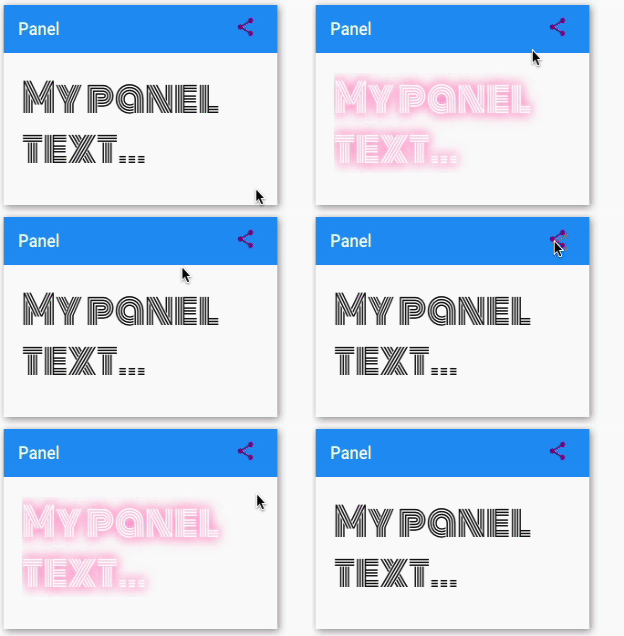
Adding Material Icons to the Panel
Set up Google Material Design Icons
There is more than one way to setup the icon fonts (we are using the JS html import here).
Include this single HTML line to your web page:
Select your icons
Go to Material Icons and click on an icon click the tab “Selected Icon” on the lower left to view the text:
share
For example, if you’ve selected the accessibility icon, you will see this:
accessibility_new


accessibility_new
Adding Google Fonts to Ext JS Panel
- Navigate to google fonts and choose a font by clicking on the (+) icon.
-
The selected fonts get added to the font families and are available to view on the bottom right corner. Follow the font import instructions to embed the fonts and specify in CSS. For example importing “Monoton” font results in this:
Add the font-family style property to your css class.
.myPanelText {
    font-family: 'Monoton', cursive;
}
Combining Material Icons and Fonts
Instead of having two fonts imports, you can use one import with two font declarations in one import. Notice the pipe(|), which is used to delimit the fonts.
For example:
See it in Action
Hover over the text and the panel share icon…
Explore Ext JS Capabilities
Haven’t surveyed the full potential of Ext JS?
View Ext JS examples and explore the possibilities with our latest version Ext JS 7.1.
 2
2
 1
1
Latest Content

How to Handle Millions of Rows in a React Data Grid: Buffered Rendering and Server-Side Data
A React data grid that feels instant with 1,000 rows can freeze with 100,000 and…
October 16, 2026

How to Choose a React Grid Component: 12 Features Enterprise Apps Need
Picking a React grid component looks easy in week one. Every option sorts columns and…
October 16, 2026
Enterprise React Data Grid: The Features Enterprise Teams Need, and What Each Grid Includes
Almost every enterprise React data grid advertises the same features: grouping, pivoting, Excel export, clipboard,…
October 16, 2026